

How to Use a Chrome Extension to Speed Up Daily AI Tasks
July 21, 2026
How to Use AI Prompts for Better Discovery Calls
July 22, 2026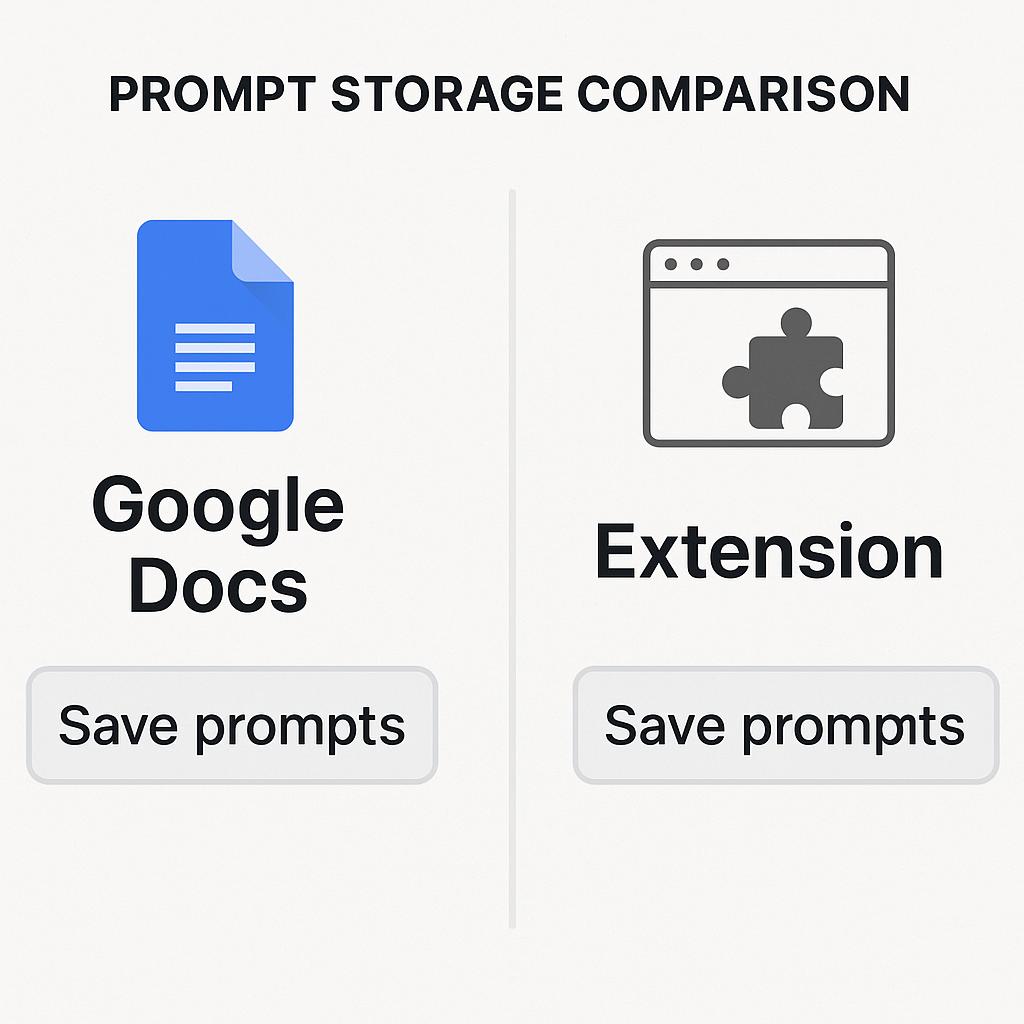
How to Use a Sidebar Extension to Stay in Your AI Flow State
Ever found yourself scrambling through endless Google Docs trying to find that “perfect prompt” you wrote last week? If you’re serious about using ChatGPT, Claude, Gemini, or any other AI tool, you know that prompt storage and retrieval can make or break your workflow. Today, we’ll compare saving prompts in Google Docs vs using a Chrome extension designed for prompt storage—so you can decide which keeps you in your AI flow state.
Why Prompt Organization Matters for AI Productivity
Prompt engineering isn’t just about crafting clever inputs—it’s about building a repeatable, scalable process. Whether you’re writing marketing copy, coding, or brainstorming, your prompts are assets. But assets only help if you can find and reuse them when you need them most.
Google Docs vs Extension: Prompt Storage Comparison
| Feature | Google Docs | Sidebar Extension (e.g., My Magic Prompt) |
|---|---|---|
| Speed | Requires opening a doc, searching, and copying | One click in your browser sidebar—no switching tabs |
| Searchability | Manual, sometimes slow; depends on naming | Instant, AI-powered search and smart tagging |
| Reuse | Copy-paste can break formatting or context | Directly insert prompts, save favorites, and auto-organize |
| Collaboration | Easy sharing, but prone to version chaos | Shareable, but keeps your personal library organized |
Framework: How to Stay in AI Flow with a Sidebar Extension
- Save as You Go: With a Chrome sidebar extension like My Magic Prompt, saving prompts is frictionless—no more “I’ll organize this later.”
- Tag for Context: Tag prompts by project, tone, or use case, so searching is lightning-fast.
- Instant Recall: Use built-in search to pull up exactly what you need mid-flow—no more tab-hopping or lost train of thought.
- Iterate Quickly: Edit, clone, or tweak prompts on the fly, and immediately test them in your favorite AI chat.
Pro tip: Treat your prompt library like a second brain—organized, searchable, and always at your fingertips. Learn more about building your prompt system.
Best Practices for Prompt Management
- Keep prompts short and modular so they’re easy to remix.
- Document which AI model each prompt works best with.
- Regularly review and prune your library—quality over quantity!
For more on optimizing your AI workflows, check out Zapier’s AI productivity guide.
FAQ: Prompt Storage & Chrome Extensions
- Why not just use Google Docs for prompt storage?
- Google Docs is familiar, but it can get cluttered fast. Finding and reusing prompts becomes slow and disruptive, especially as your library grows.
- How does a Chrome extension improve prompt management?
- Extensions like My Magic Prompt live in your sidebar, enabling instant save, search, and reuse—keeping you focused and in flow.
- Is it safe to store prompts in a Chrome extension?
- Top extensions use secure storage and never share your data without consent. Always review privacy policies before installing.
- Can I use sidebar extensions with any AI tool?
- Yes! Most are designed to work with ChatGPT, Claude, Gemini, and more. Check extension compatibility on the store listing.
- What’s the best way to organize prompts for different projects?
- Use tags and folders, and add notes on context or model preference. Sidebar extensions make this easy to maintain.
Ready to Level Up Your Prompt Game?
If you’re looking to save time, reduce friction, and never lose your best ideas, try a purpose-built prompt storage extension. Explore My Magic Prompt on Chrome and see how effortless prompt management can be. Your future self will thank you!