

What Makes MagicPrompt the Best Prompt Chrome Extension
August 19, 2026
Why Every Chrome User Needs a Prompt Manager Extension
August 20, 2026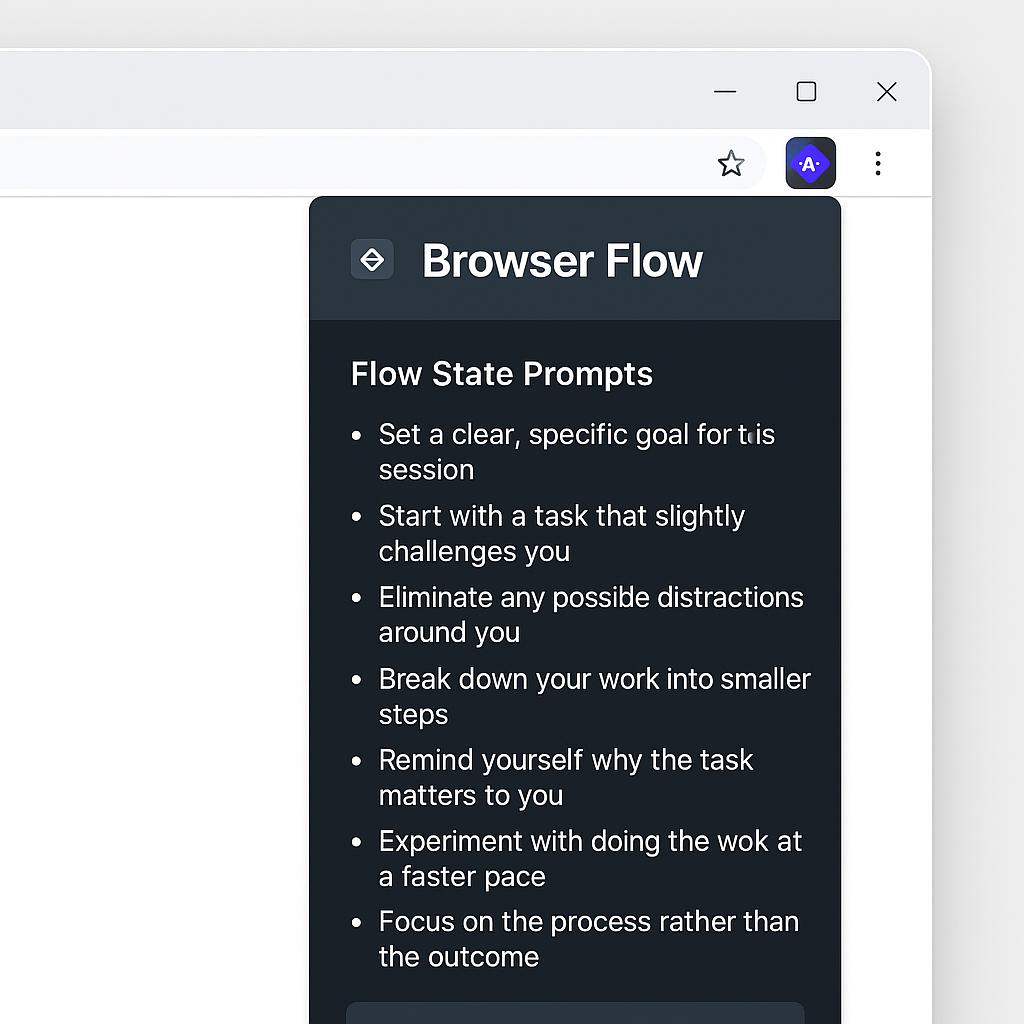
Why Chrome Is Becoming the Default Interface for AI Work
Makes the case for sidebar-style extensions that keep AI accessible without breaking the user’s current working context.
Ever started drafting an email or working on a research doc, only to lose your train of thought toggling between tabs and AI chatbots? You’re not alone. As AI becomes an everyday productivity partner, many of us face a simple—but frustrating—challenge: how do we keep these powerful tools at our fingertips, without breaking our workflow?
The Rise of Sidebar Chrome Extensions for AI
Enter the sidebar Chrome extension AI revolution. Instead of bouncing between apps or copying and pasting prompts, sidebar extensions offer a seamless way to interact with AI right inside your browser. Think of it as your personal productivity co-pilot that never interrupts your flow.
- Stay in context: Work on documents, emails, or research while your AI assistant is always one click away.
- Instant prompt access: Generate, refine, or store prompts without leaving your current tab.
- Faster iterations: See results in real time and tweak as you work, saving time and mental energy.
Keeping Your Browser Flow State with Smart Prompts
The magic of browser-based AI isn’t just about convenience—it’s about maintaining your browser flow state prompts. Whether you’re brainstorming, summarizing, or drafting, the right sidebar tool lets you:
- Capture context instantly: Highlight text, right-click, and send it to your AI assistant for analysis or rewriting.
- Use prompt templates: Save your favorite or most effective prompts for reuse—no need to reinvent the wheel.
- Experiment rapidly: Adjust tone, length, or format of generated content on the fly.
Tools like My Magic Prompt supercharge this process by generating high-quality prompts for ChatGPT, Claude, Gemini, and more—right from your Chrome sidebar. You can add MagicPrompt to Chrome and instantly upgrade your daily workflow.
Best Practices for Sidebar AI Productivity
- Organize your prompts: Create folders or tags for different tasks (e.g., email, research, brainstorming).
- Set up quick actions: Use keyboard shortcuts or context menus to trigger your favorite prompts faster.
- Review and iterate: Check AI outputs for accuracy and tweak prompts as needed for your unique use case.
- Maintain privacy: Always review what data you’re sharing with AI tools, and use trusted extensions from reputable developers (see top Chrome extensions).
Frequently Asked Questions
- What is a sidebar Chrome extension AI?
- It’s a browser extension that lets you interact with AI models (like ChatGPT or Gemini) directly in a sidebar, so you don’t have to switch tabs or disrupt your workflow.
- How do sidebar extensions help with productivity?
- They keep AI accessible within your current context, allowing you to generate, test, and refine prompts without breaking your focus or losing work momentum.
- What are browser flow state prompts?
- These are prompts you use to interact with AI while staying in your “flow state”—the mental zone where you’re most productive, creative, and focused.
- Can I use prompt templates in Chrome sidebar extensions?
- Absolutely! Many sidebar tools, like MagicPrompt, let you save and reuse custom prompt templates for different tasks or writing styles.
- Is my data safe with AI sidebar extensions?
- Always choose extensions from reputable developers, review their privacy policies, and be mindful of what information you share. For more on browser extension safety, check out this guide to Chrome extension safety.
Ready to Supercharge Your AI Workflow?
If you want to work smarter—without breaking your flow—explore how My Magic Prompt can help you create, organize, and deploy better prompts right from your Chrome sidebar.