

The Best Prompts for Calendar Planning and Weekly Priorities
August 5, 2026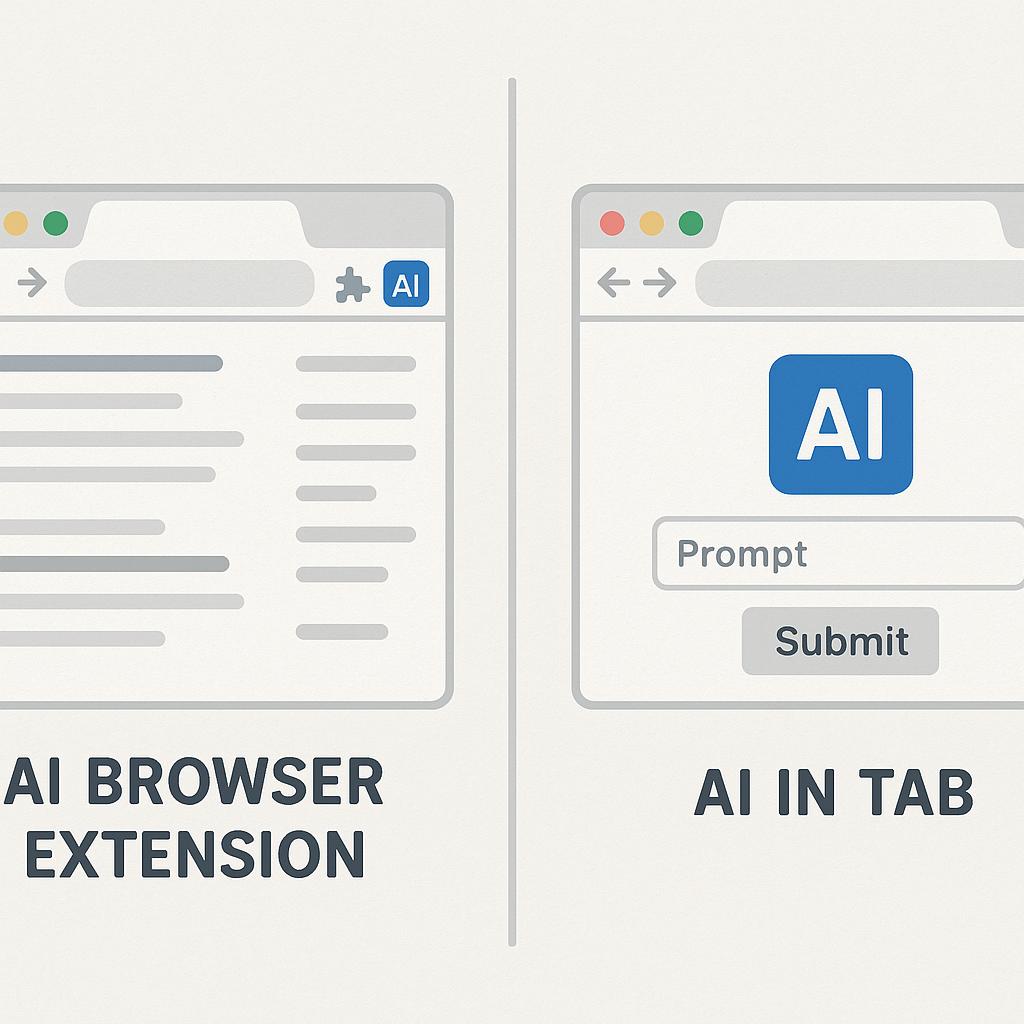
The Best Prompts for Client Kickoff Documents: AI Browser Extension vs Tab
Ever found yourself juggling multiple tabs with ChatGPT or Claude open, copy-pasting the same onboarding questions into every new client file? You’re not alone. Many productivity-minded professionals know the power of AI for client kickoff documents—yet most still rely on a clunky “AI tab” workflow instead of something truly integrated into their day-to-day processes. Let’s dive into how a smart Chrome prompt workflow (powered by the right AI browser extension) can transform your client onboarding game and share the best prompts to use along the way.
Why “AI Tab” Isn’t Enough: Functional Gaps in Typical Prompt Workflows
Keeping an AI tab open is like having a calculator on your desk—you have to stop, switch context, and manually input everything. This friction slows you down and can create inconsistencies in your client kickoff documents. Here’s why:
- Context switching: Constantly jumping between tabs interrupts focus.
- Manual work: Copy-pasting prompts and client details is tedious and error-prone.
- Lack of integration: You can’t easily adapt or reuse your best prompts where you need them most—right inside your Chrome workflow.
According to Zapier, context switching can reduce productivity by up to 40%. The gap between an open AI tab and an active AI extension is the difference between occasional inspiration and repeatable, scalable excellence.
Building Your Chrome Prompt Workflow for Client Kickoff Success
With an AI browser extension like My Magic Prompt, you can instantly surface the right prompts in any tab, side-stepping all friction. Here’s a simple framework for client kickoff documents:
- Define the deliverables: What will you need from the client (goals, brand assets, timelines)?
- Standardize your prompts: Create reusable templates for:
- Project objectives (“Summarize the client’s main goals in 2-3 sentences.”)
- Stakeholder mapping (“List all known stakeholders and their roles.”)
- Key questions (“Generate a checklist of clarifying questions for the kickoff call.”)
- Integrate and iterate: Use your AI extension to tweak, save, and reuse these prompts as your workflow evolves.
Pro tip: With My Magic Prompt, you can instantly insert or adapt your best prompts across docs, emails, and project tools—no more tab-hopping required. Learn how it works.
Best Practices: Making Prompts Work Harder for You
- Be specific: Tailor prompts for each client or project type (e.g., SaaS onboarding vs. marketing campaign kickoff).
- Use checklists: Prompt AI to generate step-by-step lists or tables for clarity.
- Iterate and save: Refine your prompts over time and save the most effective versions in your extension for one-click access.
For more on prompt engineering, check out Prompting Guide.
FAQ: AI Browser Extension vs Tab & Chrome Prompt Workflow
- What’s the difference between using an AI browser extension and just keeping an AI tab open?
- An AI browser extension integrates prompts directly into your workflow, reducing context switching and making it easier to access, adapt, and reuse your best prompts anywhere in Chrome.
- Can I use My Magic Prompt with different AI models?
- Yes! My Magic Prompt supports ChatGPT, Claude, Gemini, and more, so you can generate high-quality prompts for your tool of choice.
- How do I create effective prompts for client kickoff documents?
- Start with clear objectives, use checklists or tables for structured information, and refine prompts over time for different client types or industries.
- Is it secure to use an AI extension for client data?
- Always review the extension’s privacy policy and data handling practices. My Magic Prompt does not store your input or client data locally or remotely.
- How can I save and reuse my best prompts efficiently?
- With an AI browser extension like My Magic Prompt, you can bookmark, organize, and instantly reuse prompts across all your tabs and tools.
Ready to Level Up Your Client Kickoff Workflow?
Stop settling for copy-paste routines and tab overload. Explore how My Magic Prompt can help you build a seamless, scalable Chrome prompt workflow for every new client—so you can focus on delivering results, not wrangling prompts.