

How to Use AI Prompts on Any Website Using a Chrome Extension
July 23, 2026
How to Use Keyboard Shortcuts for Faster AI Prompting in Chrome
July 24, 2026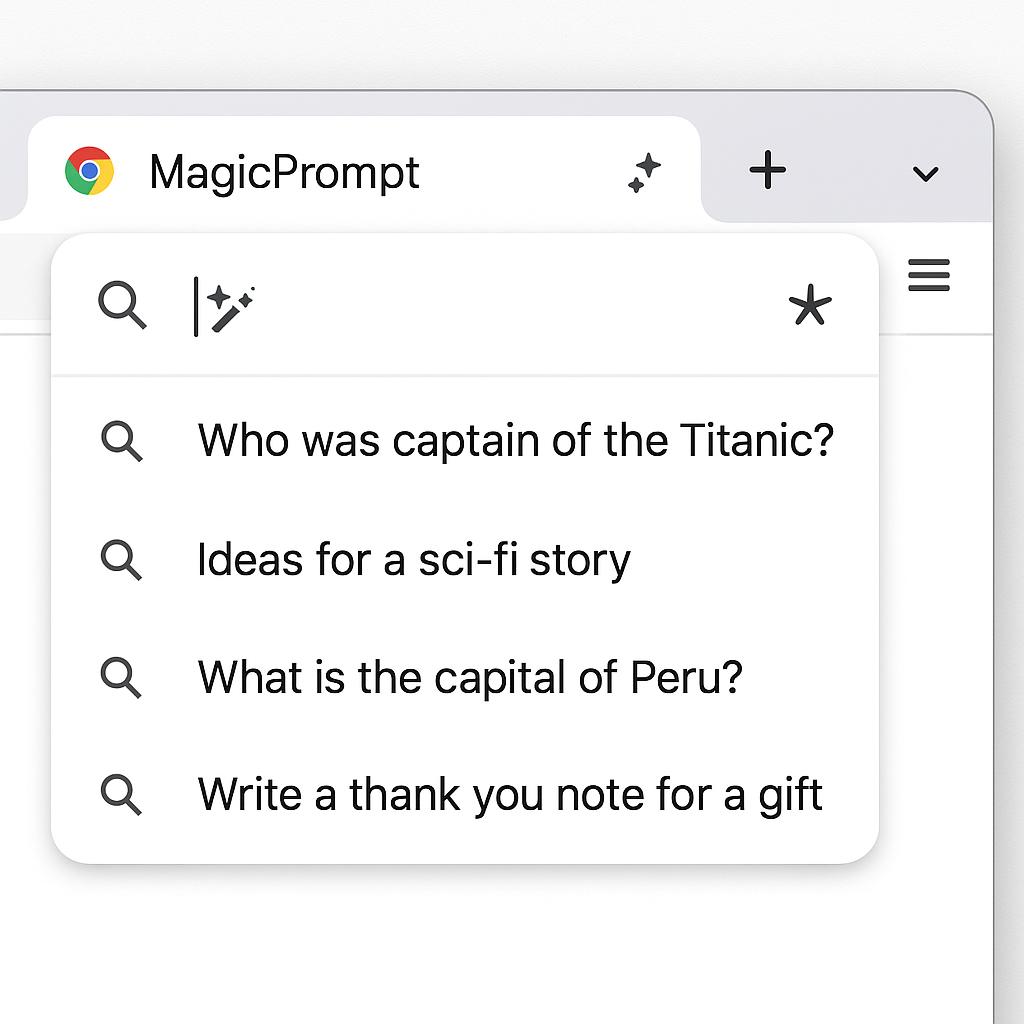
How to Use Chrome Extensions for AI Without Privacy Risks
Ever wish you could harness the power of AI—right inside your browser—without worrying about privacy or security? If you’re an AI enthusiast, a productivity pro, or just someone who wants to use ChatGPT, Claude, or Gemini more strategically, you’re not alone. The rise of context-aware prompting Chrome extensions has made it easier than ever to access smart browser prompt suggestions, but privacy remains a top concern. Let’s break down how you can leverage these tools safely and effectively—plus, discover why smart users swear by MagicPrompt for next-level productivity.
Why Context-Aware Prompting in Chrome Matters
Most of us juggle dozens of tabs, emails, and documents. Manually crafting prompts for each scenario isn’t just tedious—it’s inefficient. Enter context-aware prompting Chrome extensions, which analyze your current tab and suggest the perfect AI prompt without you lifting a finger.
- Faster workflow: Instantly surface the right saved prompts for your task
- Personalization: Get browser prompt suggestions tailored to the site or document you’re viewing
- Reduced context-switching: Spend less time copying, pasting, and re-writing prompts
Privacy First: How MagicPrompt Keeps Your Data Safe
It’s natural to be wary of browser extensions that “read your tabs.” With MagicPrompt, privacy is built in from the ground up. Here’s how:
- Minimal data access: MagicPrompt only reads the context (like page titles or URLs) to match relevant prompts—never your private content or credentials.
- On-device processing: Context detection happens locally, so your browsing data never leaves your computer.
- Transparency: MagicPrompt is clear about permissions and doesn’t track your activity across sites (learn more about Chrome extension privacy here).
How to Use MagicPrompt for Context-Aware Prompting
- Install the Extension: Add MagicPrompt from the Chrome Web Store.
- Save Your Favorite Prompts: Organize prompts by topic, tool, or scenario.
- Let MagicPrompt Do the Work: As you browse, MagicPrompt automatically surfaces your most relevant prompts for ChatGPT, Claude, Gemini, and more—right when you need them.
Pro Tips for Safer, Smarter Prompting
- Review extension permissions before installing any AI tool.
- Use browser prompt suggestions as a starting point—edit and personalize for best results.
- Check for regular updates that improve privacy and security.
- Stay informed: Read privacy policies and community reviews on trusted platforms like MakeUseOf.
FAQ: Chrome Extensions, AI, and Prompt Safety
- How does MagicPrompt know which prompt to suggest?
- MagicPrompt uses page context (like URL and site type) to match and surface your saved prompts—no sensitive data is accessed.
- Is my browsing data sent to external servers?
- No. All context analysis is done locally on your device, ensuring your privacy and security.
- Can I control what data MagicPrompt accesses?
- Yes! You can review and adjust extension permissions in Chrome at any time.
- Does MagicPrompt work with all AI chatbots?
- Absolutely. It’s designed to provide browser prompt suggestions for ChatGPT, Claude, Gemini, and many more.
- Are there best practices for using context-aware prompting Chrome extensions?
- Always check permissions, keep extensions updated, and create prompt libraries tailored to your workflow.
- Where can I learn more about MagicPrompt’s privacy features?
- Visit the MagicPrompt website for details on security, privacy, and prompt management.
Try MagicPrompt for Effortless, Secure Browser Prompt Suggestions
Ready to work smarter with AI—without sacrificing privacy? Explore how MagicPrompt can become your secret weapon for context-aware prompting in Chrome. Boost your productivity, keep your data safe, and unlock the full potential of your favorite AI assistants—right from your browser.