

How Context-Aware Prompting Works in Your Browser
June 29, 2026
How to Build a Browser-Based AI Hub for Your Whole Team
June 30, 2026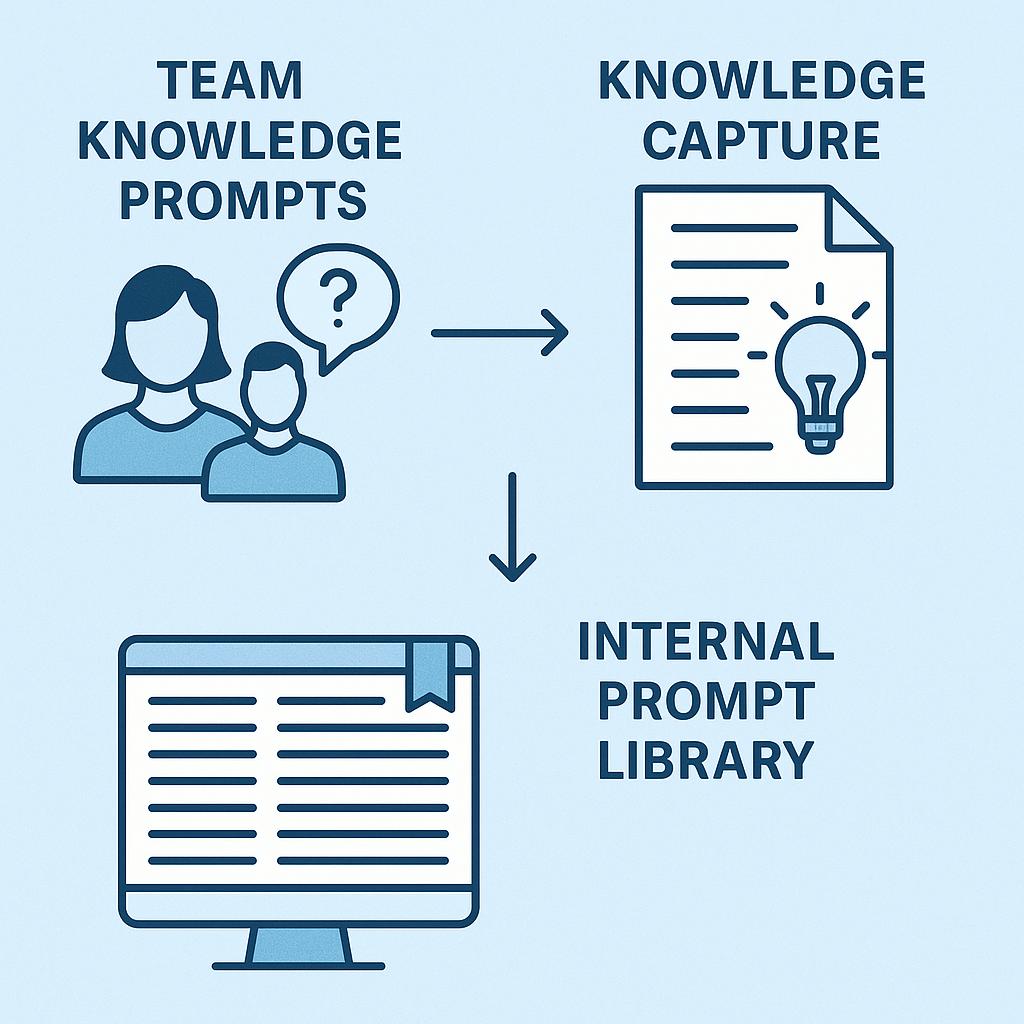
How to Automate Repetitive Prompts in Chrome Without Code
Ever find yourself typing the same ChatGPT or Claude prompt over and over? Or maybe your team has built up a treasure trove of clever prompts, but they’re scattered in docs, chats, or someone’s memory. This is a common productivity roadblock: team knowledge prompts and best practices get lost, and everyone spends time reinventing the wheel.
What if you could capture that knowledge, create an internal prompt library, and automate repetitive tasks—all without writing a single line of code? Let’s break down how you can make this a reality right inside Chrome, unlocking a new level of AI-powered efficiency for your team.
Why Automate Prompts? Unlocking Team Knowledge Assets
- Save time: Stop manually copying, pasting, and tweaking prompts.
- Boost consistency: Ensure your team uses proven, high-quality prompts every time.
- Capture expertise: Turn “tribal knowledge” into reusable assets anyone can access.
- Scale best practices: Share successful prompt strategies across your company.
Framework: Building Your Internal Prompt Library (No Code Needed)
Here’s a simple, no-code workflow to turn team know-how into a living prompt library—then automate those prompts in Chrome:
- Collect team knowledge prompts: Gather your most-used prompts from team members, docs, or chat threads.
- Standardize and organize: Refine prompts for clarity. Group them by use-case (e.g., brainstorming, summarizing, client emails).
- Centralize in a prompt library: Use a tool like My Magic Prompt to store and share prompts with your team.
- Automate in Chrome: Install the MagicPrompt Chrome Extension. With a click, instantly insert reusable prompts into ChatGPT, Claude, Gemini, and other AI tools—no coding or set-up required.
Pro Tip: Turn Prompt Fragments Into Templates
Don’t just save full prompts—capture modular “prompt fragments.” For example: a tone modifier (“Rewrite in a friendly, concise style”), or a data request (“Summarize this table in three bullet points”). Combine fragments to create powerful, on-demand templates.
Best Practices for Knowledge Capture and Sharing
- Schedule prompt reviews: Regularly update your library with new discoveries.
- Encourage feedback: Let team members suggest improvements or flag outdated prompts.
- Document context: Add notes on when and why to use each prompt, avoiding misuse.
FAQ: Automating Team Knowledge Prompts in Chrome
How do I capture team prompts efficiently?
Start with a shared doc or spreadsheet. Ask teammates to drop in their favorite prompts and use cases. Later, migrate them to a dedicated prompt library tool for easier management.
Can I automate prompts in ChatGPT, Claude, or Gemini?
Yes! With tools like the MagicPrompt Chrome Extension, you can insert saved prompts directly into your favorite AI chatbots in Chrome.
Is coding required to set this up?
No coding needed—just organize your prompts and use a Chrome extension to automate and share them.
How can I ensure my team adopts the internal prompt library?
Promote the library during meetings, offer quick demos, and make it easy to access (e.g., via a Chrome extension). Recognize contributors who add valuable prompts.
What are some resources for prompt engineering best practices?
Check out Prompt Engineering Guide and Learn Prompting for inspiration and frameworks.
Level Up Your Team’s AI Game
Automating repetitive prompts isn’t just about saving clicks—it’s about capturing your organization’s know-how and making it accessible to everyone. With no-code tools like My Magic Prompt, you can transform scattered expertise into a powerful, shared library that accelerates productivity and innovation.
Ready to see how effortless prompt automation can be? Explore My Magic Prompt and start building your internal prompt assets today.