

Prompt Chaining: The Advanced Technique for Multi-Step AI Tasks
June 1, 2026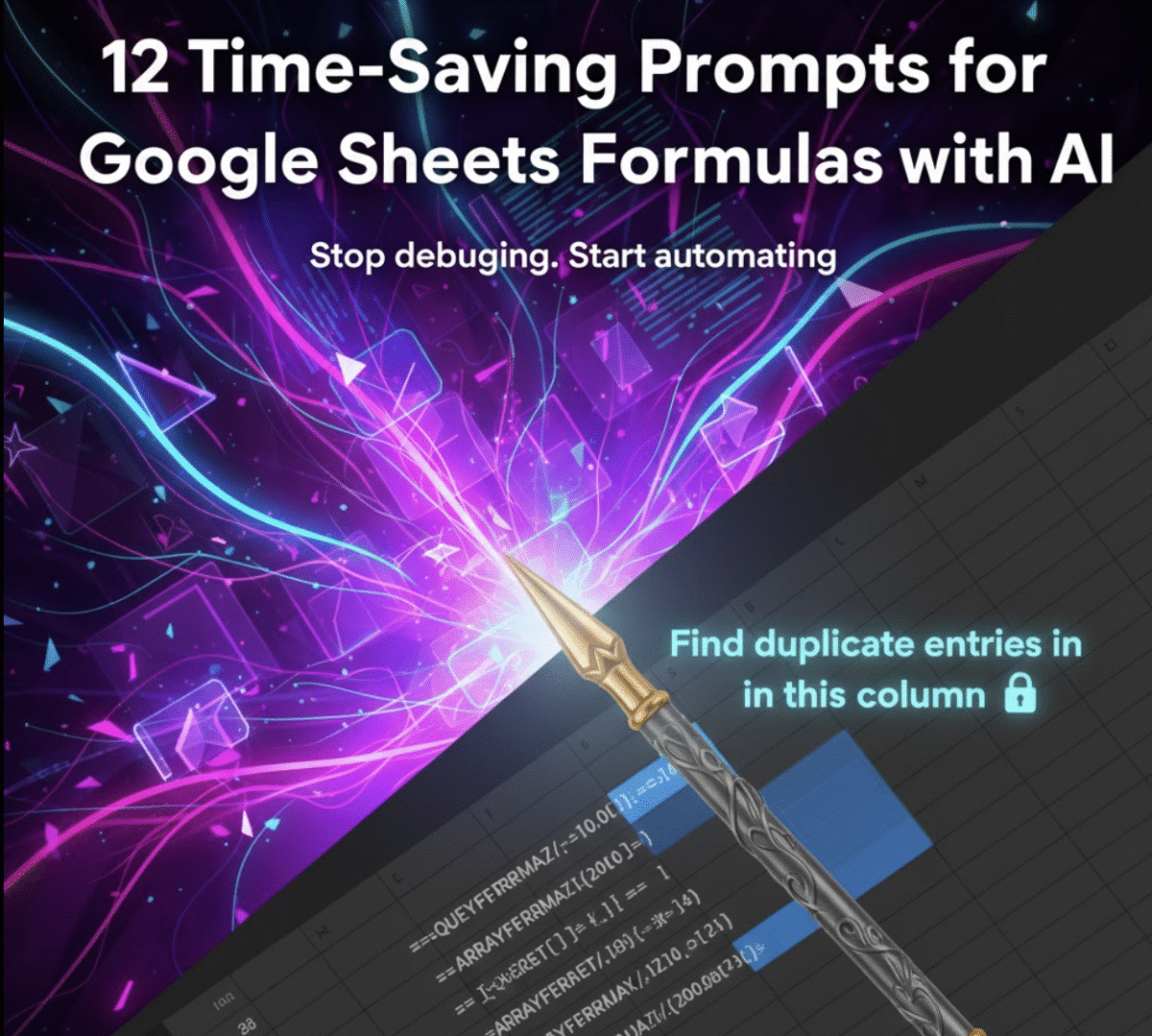
✍️ Introduction: From Spreadsheet Struggles to Smart Prompts
If you’ve ever spent 20 minutes debugging a Google Sheets formula or Googling syntax help for the nth time, you’re not alone. Even experienced users can waste hours wrestling with formulas — from nested IF statements to regex functions.
But with AI tools like My Magic Prompt, generating accurate and efficient Google Sheets or Excel formulas takes seconds. Whether you’re a virtual assistant, data analyst, or small business owner, prompt-powered formula generation can save you serious time.
In this guide, you’ll get 12 ready-to-use prompts for Google Sheets formulas — plus how to tweak them using MagicPrompt to match your exact use case.

📚 Why Use AI for Spreadsheet Formulas?
Before diving into the prompts, here’s why AI (and MagicPrompt) makes a difference:
- Instant syntax help: Get formulas written correctly the first time.
- Error reduction: Eliminate typos and mismatched parentheses.
- Faster automation: Create multi-step calculations with clear explanations.
- Learning boost: See how each formula works and modify it easily.
AI doesn’t just give you answers — it helps you understand and reuse them.
🧩 12 Time-Saving Prompts for Google Sheets Formulas
Each of these prompts works with ChatGPT, Claude, Gemini, or your favorite LLM — and they perform best when enhanced with MagicPrompt’s prompt templates and context builder.
1. Calculate Conditional Totals
“Write a Google Sheets formula that sums column B if column C contains the word ‘Completed.’”
2. Combine First and Last Names
“Generate a formula to combine first and last names from columns A and B with proper spacing.”
3. Find Duplicate Entries
“Give me a formula to highlight or flag duplicate values in column D.”
4. Extract Text After a Specific Character
“Write a Google Sheets formula that extracts everything after the dash (-) in each cell of column A.”
5. Calculate Percentage Change
“Create a formula to calculate the percentage increase or decrease between two cells.”
6. Automatically Add Today’s Date When Data is Entered
“Write a formula that inserts today’s date in column C when a new entry appears in column B.”
7. Clean Up Spaces and Capitalization
“Generate a formula that trims spaces and capitalizes the first letter of each word in column A.”
8. Count Unique Values
“Create a formula that counts unique entries in column F.”
9. Extract Email Domains
“Write a formula that extracts the domain name from email addresses in column D.”
10. Combine Data from Multiple Sheets
“Give me a formula to merge data from Sheet1 and Sheet2 based on matching IDs.”
11. Highlight Missing Values
“Generate a conditional formatting rule that highlights blank cells in column E.”
12. Create a Running Total
“Write a formula that creates a running total in column C based on values in column B.”
🛠️ How MagicPrompt Makes Formula Generation Easier
Instead of typing or tweaking long prompts manually, MagicPrompt simplifies the workflow:
| Feature | What It Does | Why It Helps |
|---|---|---|
| Prompt Templates | Prebuilt prompt patterns for Sheets and Excel | Consistent accuracy and faster generation |
| Prompt Builder | Auto-structures your input for context clarity | Eliminates prompt confusion |
| AI Toolkit | Compare outputs across multiple models (ChatGPT, Claude, Gemini) | Choose the best response instantly |
| Cloud Sync | Save your most-used prompts for reuse across projects | Keeps your AI workspace organized |
➡️ Try it via the Magic Prompt Chrome Extension or visit My Magic Prompt for more tools.
💡 Pro Tips for Using Prompts with Spreadsheets
- Always describe the goal, not the tool (e.g., “Find duplicates,” not “Use COUNTIF”).
- Include context like column letters and example data.
- Ask AI to explain the formula so you can reuse and adapt it.
- Save your best formulas in MagicPrompt for one-click reuse.
❓FAQ: Prompts for Google Sheets Formulas
Q1: Can I use these prompts for Excel too?
Yes! Most Google Sheets formulas also work in Excel with minor syntax tweaks — AI can adjust them for you.
Q2: What’s the best way to organize my formula prompts?
Use MagicPrompt’s prompt library and sync feature to categorize them by use case (finance, reporting, data cleanup, etc.).
Q3: How accurate are AI-generated formulas?
They’re highly reliable, especially when reviewed by users with basic spreadsheet knowledge. Always test before deploying.
Q4: Can I automate entire workflows using prompts?
Absolutely. Combine formula prompts with AI-generated macros or Apps Script snippets for end-to-end automation.
Q5: How does MagicPrompt differ from typing directly in ChatGPT?
MagicPrompt optimizes your phrasing, adds context automatically, and lets you save or sync results — making AI-assisted work far smoother.
🤍 Wrap-Up: Turn Spreadsheet Pain into Prompt Power
AI can transform your daily spreadsheet tasks — but tools like MagicPrompt make it seamless. With reusable templates, prompt syncing, and multi-model testing, you’ll turn hours of manual formula tweaking into minutes of productivity.
👉 Explore My Magic Prompt and start building your formula prompt library today.