

Why Power Users Install MagicPrompt Before Any Other AI Extension
August 20, 2026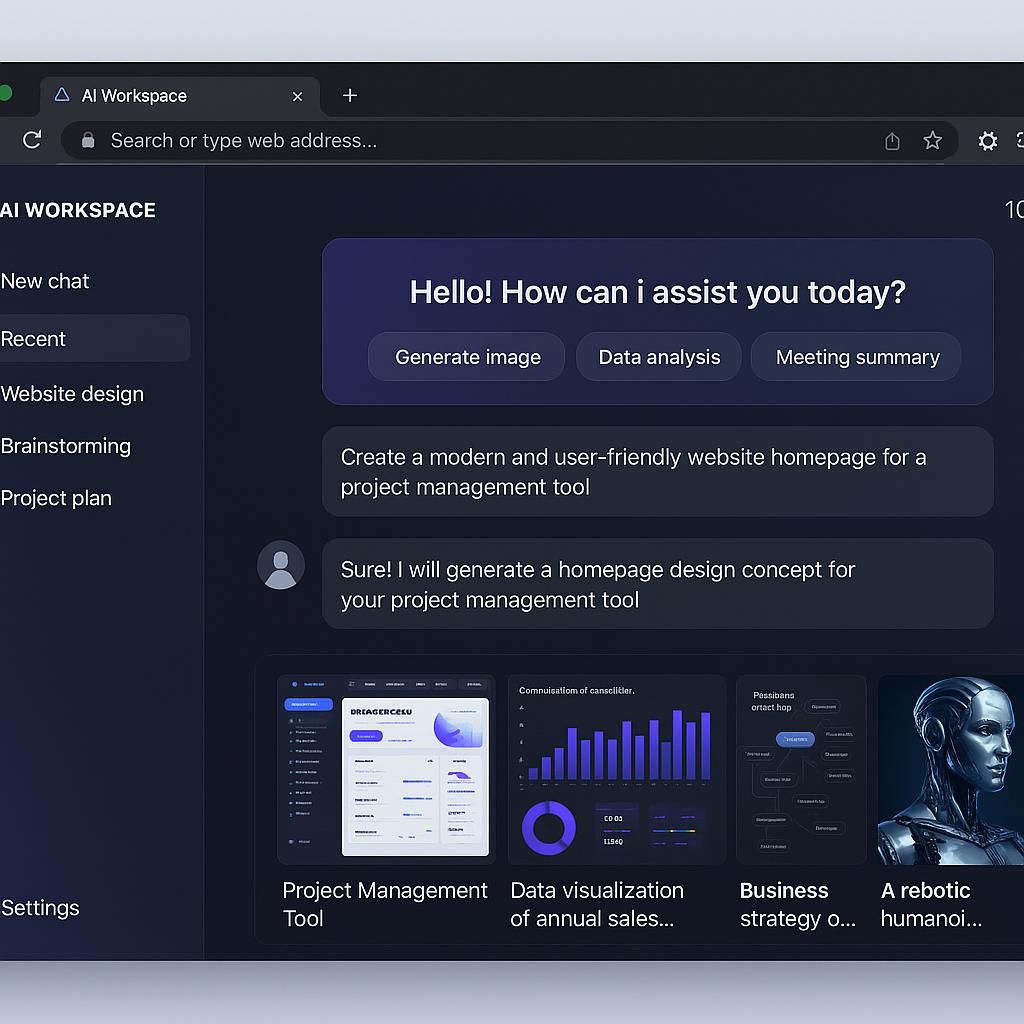
Why Prompt Copy-Paste Is Killing Your Productivity (And the Fix)
Ever find yourself juggling a dozen browser tabs, copying prompts from Google Docs into ChatGPT, then tweaking for Claude or Gemini—only to lose track of your best ideas? You’re not alone. As the chrome AI interface 2026 evolves, “prompt copy-paste” is the silent productivity killer few people talk about. The real game-changer? Treating your browser as your AI workspace, with tools built for seamless, native workflows.
The Copy-Paste Trap: Why It Drains Your Focus
Copying and pasting prompts across different AI tools might seem efficient, but it’s actually a recipe for distraction:
- Context switching: Flipping between tabs breaks your flow and increases cognitive load (Harvard Business Review).
- Lost prompt versions: Edits get scattered between apps, making it hard to track what actually worked.
- Manual errors: One accidental click and your best prompt is overwritten or lost.
In a world where browser as AI workspace is the new normal, these old habits slow you down and stifle creativity.
Chrome AI Interface 2026: Your Browser Is Now Mission Control
Fast-forward to today: Chrome extensions like MagicPrompt turn your browser into a native AI interface. That means less tab-hopping and more high-impact work, right where you already are.
Here’s how smart AI users are upgrading their workflow:
- Prompt Libraries: Organize, tag, and instantly reuse your best prompts—no more digging through old docs.
- One-click Insertion: Insert, adapt, and share prompts directly inside ChatGPT, Claude, or Gemini.
- Real-time Editing: Tweak prompts on the fly and send them to any AI tool, without breaking your workflow.
| Old Way | Browser-Native AI Workflow |
|---|---|
| Copy/paste between tabs | Insert prompts natively with Chrome extensions |
| Manual version control | Auto-save and organize prompts |
| Frequent context switching | Stay focused in one workspace |
Prompt Engineering Best Practices for 2026
- Standardize Your Templates: Build prompt structures you can adapt and reuse across projects (see My Magic Prompt for inspiration).
- Leverage Tags & Folders: Use Chrome AI interfaces that let you search and categorize prompts instantly.
- Integrate Directly: Choose tools that work in your browser—no more exporting or importing prompts.
- Iterate Quickly: Use real-time editing and feedback to refine prompts for different AIs on the fly.
FAQ: Chrome AI Interface 2026 & Browser as AI Workspace
- What is a browser-native AI workspace?
- A workspace where AI tools, prompt libraries, and editing features live directly in your browser—no switching apps required.
- How does a Chrome AI interface boost productivity?
- It minimizes context switching, keeps your prompts organized, and lets you interact with multiple AI tools in one place.
- Are browser extensions for AI secure?
- Most reputable AI extensions follow strict privacy guidelines. Always check reviews and permissions before installing (PCMag guide).
- Can I use the same prompts across ChatGPT, Claude, and Gemini?
- Yes! With browser-native prompt libraries, you can adapt and deploy prompts to any AI chatbot in seconds.
- Where can I find high-quality AI prompt templates?
- Explore prompt templates and smart workflows at My Magic Prompt.
Ready to Upgrade Your AI Workflow?
If you’re still wrestling with copy-paste chaos, it’s time to try a browser-native approach. Smarter prompt management awaits—explore what My Magic Prompt can do for your AI productivity today.