

How to Build a Prompt Library for Internal Training
July 2, 2026
How to Build a Prompt Workflow for Book Writing
July 4, 2026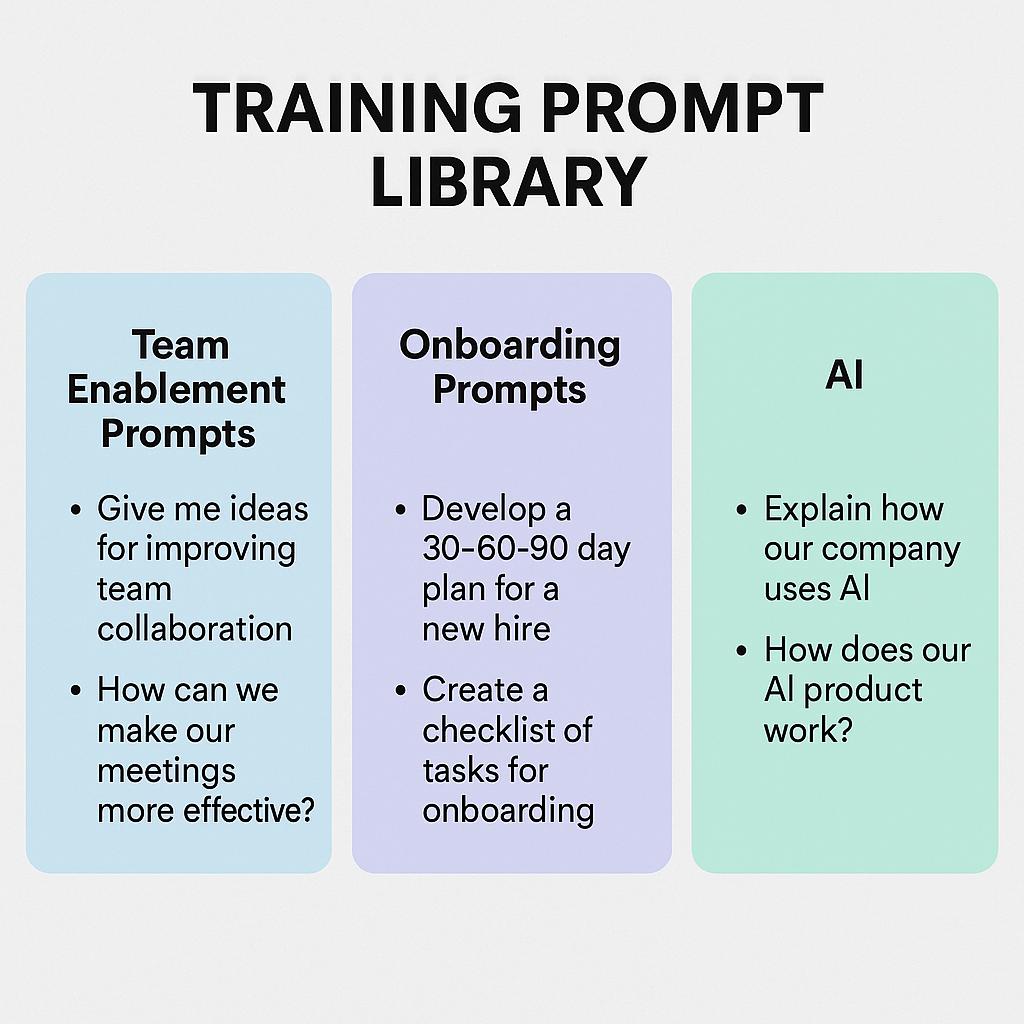
How to Build a Prompt Shortcut System in Chrome
Ever find yourself typing the same prompts over and over in ChatGPT, Claude, or Gemini? Or maybe you’re tasked with onboarding new team members, running knowledge checks, or enabling teams—only to realize your best prompts live scattered in docs, Slack, or, let’s be honest, your memory. There’s a better way: building a prompt shortcut system in Chrome. This guide will show you how to transform your training prompt library into a fast, accessible powerhouse for team enablement and onboarding AI.
Why a Prompt Shortcut System?
Prompt engineering is now a core productivity skill. But even the best prompts are useless if your team can’t find and use them quickly. A prompt shortcut system helps you:
- Standardize onboarding and coaching with reusable prompt assets
- Enable teams with role-based training prompts
- Run knowledge checks efficiently
- Save time—no more hunting for that “perfect prompt”
Framework: Building Your Training Prompt Library in Chrome
Here’s a simple blueprint for setting up your own prompt system using Chrome extensions and My Magic Prompt:
1. Curate Your Best Prompts
- Gather prompts for onboarding, coaching, knowledge checks, and role-specific tasks.
- Organize by theme or function (e.g., Sales Onboarding, Product Training, Manager Coaching).
- Use clear, descriptive titles so anyone can understand when to use each prompt.
2. Use Chrome Extensions for Rapid Access
- Install the MagicPrompt Chrome Extension to save, categorize, and instantly insert prompts with a click.
- Pin it in your browser for easy access during onboarding sessions, team training, or daily workflows.
- Sync your prompt library across devices for team-wide consistency.
3. Share and Scale
- Create shared folders or tags for different teams (e.g., Marketing, Support, Leadership).
- Encourage team members to contribute their best prompts, building a living training prompt library.
- Regularly review and update prompts based on feedback—AI and workflows change fast!
Example: Role-Based Training Prompts
| Role | Prompt Example |
|---|---|
| Sales Rep | “Act as a product expert and answer common objections from a potential client.” |
| Manager | “Generate a knowledge check quiz for new hires on our team values.” |
| Support Agent | “Draft a troubleshooting guide for our top 3 customer issues.” |
FAQ: Building and Using a Chrome Prompt Shortcut System
- What is a training prompt library?
- A training prompt library is a curated collection of reusable prompts for onboarding, coaching, and team enablement. It helps standardize and speed up AI-powered workflows.
- How can a prompt shortcut system improve onboarding AI?
- By making your best prompts instantly accessible, new hires and team members can learn faster and with more consistency. This boosts confidence and productivity.
- Can I share prompt libraries with my team?
- Absolutely! Tools like My Magic Prompt allow you to organize, share, and update prompt assets across teams.
- What are some best practices for team enablement prompts?
- Use clear titles, organize by role or function, and update prompts regularly. Encourage feedback from team members to keep your library relevant.
- Do I need to be technical to set up a prompt shortcut system?
- Not at all. Most Chrome extensions are easy to install and use—no coding required. For advanced tips, check out resources from Zapier or HubSpot AI.
Ready to Uplevel Your Prompt Game?
Building a Chrome prompt shortcut system can save hours, boost team enablement, and turn onboarding AI into a breeze. Curious how the pros do it? Explore My Magic Prompt to start building your own training prompt library today.