

Why Chrome Is Becoming the Default Interface for AI Work
August 19, 2026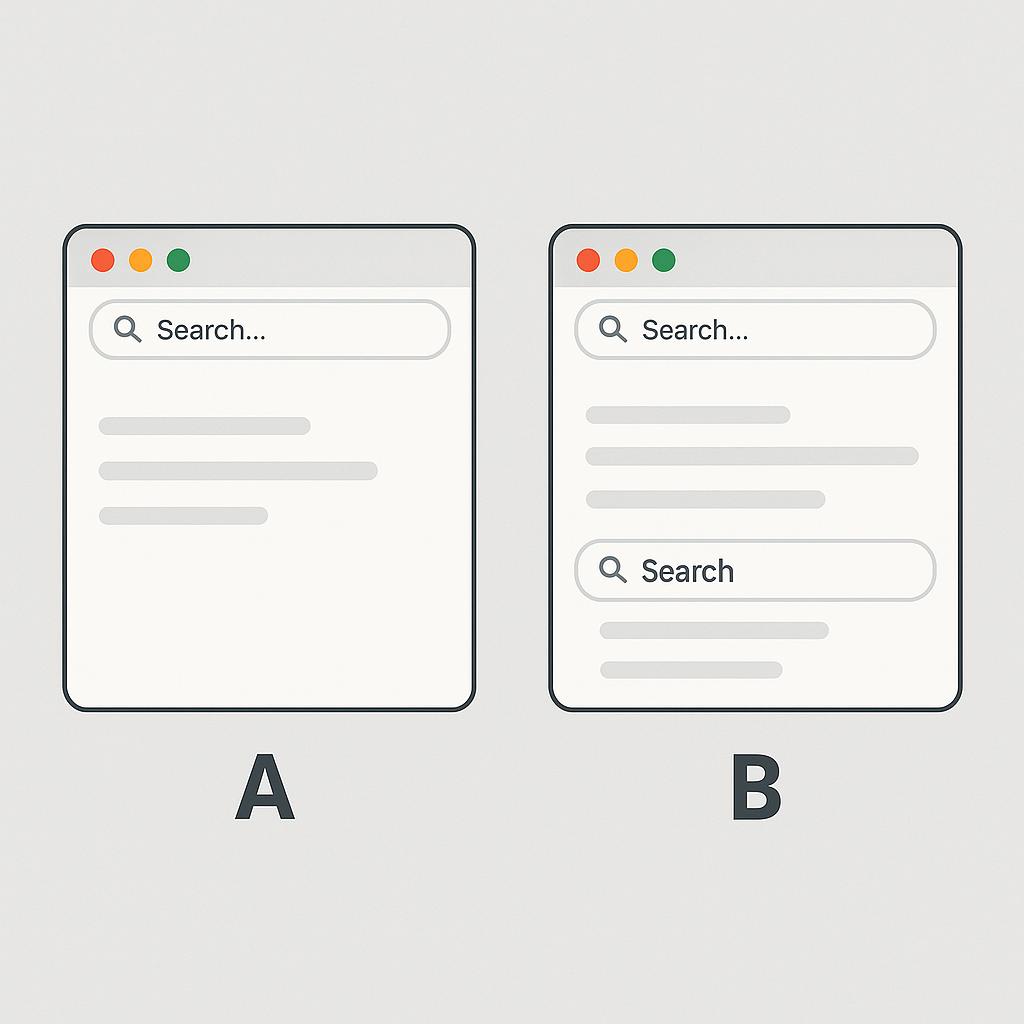
Why Every Chrome User Needs a Prompt Manager Extension
Have you ever found yourself flipping between tabs, copying and pasting different prompts into ChatGPT or Claude, just to figure out which one gets you better results? If you’re into AI-powered productivity, you probably know that small changes in prompts can lead to dramatically different outputs. But comparing prompts isn’t exactly seamless—unless you’ve got the right tools.
The Challenge: Efficient Prompt AB Testing in Your Browser
Whether you’re a developer, marketer, or creative professional, prompt engineering is now a critical skill. But testing and refining prompts is often a clunky process:
- Constantly copy-pasting between apps or browser tabs
- Losing track of which prompt produced which result
- Wasting time on manual comparisons instead of getting real work done
Enter the prompt manager extension for Chrome—a secret weapon for anyone looking to run fast, side-by-side prompt AB testing in Chrome and compare prompts directly in their browser.
How a Prompt Manager Extension Makes You a Power User
Imagine you could instantly swap, tweak, and test prompts without breaking your workflow. With a tool like My Magic Prompt’s Chrome extension, that’s exactly what you get. Here’s how it upgrades your prompt engineering:
- Quick prompt AB testing: Run two or more prompts side-by-side and see which output gets you closer to your goal—idea generation, code, emails, you name it.
- Organize and reuse: Save your best prompts in folders for easy access, so you never lose a winning formula.
- One-click comparisons: Instantly send prompts to ChatGPT, Claude, or Gemini right from your browser.
- Results tracking: Keep a record of which prompt versions perform best over time.
Framework: Running Effective Prompt Comparisons
- Define your goal (e.g., clarity, creativity, conciseness).
- Draft multiple prompt variations in your extension.
- Send them to your AI tool of choice with a click.
- Review and compare outputs in real-time.
- Save the top performer for future use.
With these steps, you’re not just guessing—you’re building a data-driven prompt library tailored to your workflow.
Best Practices for Prompt AB Testing in Chrome
- Be systematic: Change one variable at a time to isolate what works best.
- Document results: Use notes or tags in your prompt manager to track what each version was aiming for.
- Iterate quickly: Use browser extensions to eliminate friction and speed up your process.
- Stay updated: Follow communities like Prompting Guide for the latest prompt engineering insights.
FAQ: Prompt AB Testing & Comparing Prompts in Your Browser
- What is prompt AB testing in Chrome?
- Prompt AB testing in Chrome means running different prompts side-by-side in your browser to see which one produces better results from an AI assistant.
- How does a prompt manager extension help compare prompts?
- It lets you save, edit, and run multiple prompts directly from your browser—making it easy to compare outputs without switching tabs or losing track.
- Can I use a prompt manager with ChatGPT, Claude, or Gemini?
- Yes! Tools like My Magic Prompt Chrome Extension work seamlessly with top AI assistants, letting you send and compare prompts instantly.
- Is prompt AB testing only for technical users?
- Not at all. Anyone who uses AI for writing, research, brainstorming, or coding can benefit from structured prompt comparisons.
- How do I keep track of which prompt works best?
- Use folders, tags, or notes within your prompt manager to document results and build your own prompt playbook over time.
Ready to Level Up Your Prompt Game?
Prompt AB testing in Chrome is the fastest way to refine your AI workflows and unlock better results. If you haven’t tried a prompt manager extension yet, explore My Magic Prompt and see how much more productive you can be.