

Why Prompt Copy-Paste Is Killing Your Productivity (And the Fix)
August 21, 2026
Why Your Browser Extension Is the Missing Layer in Your AI Stack
August 24, 2026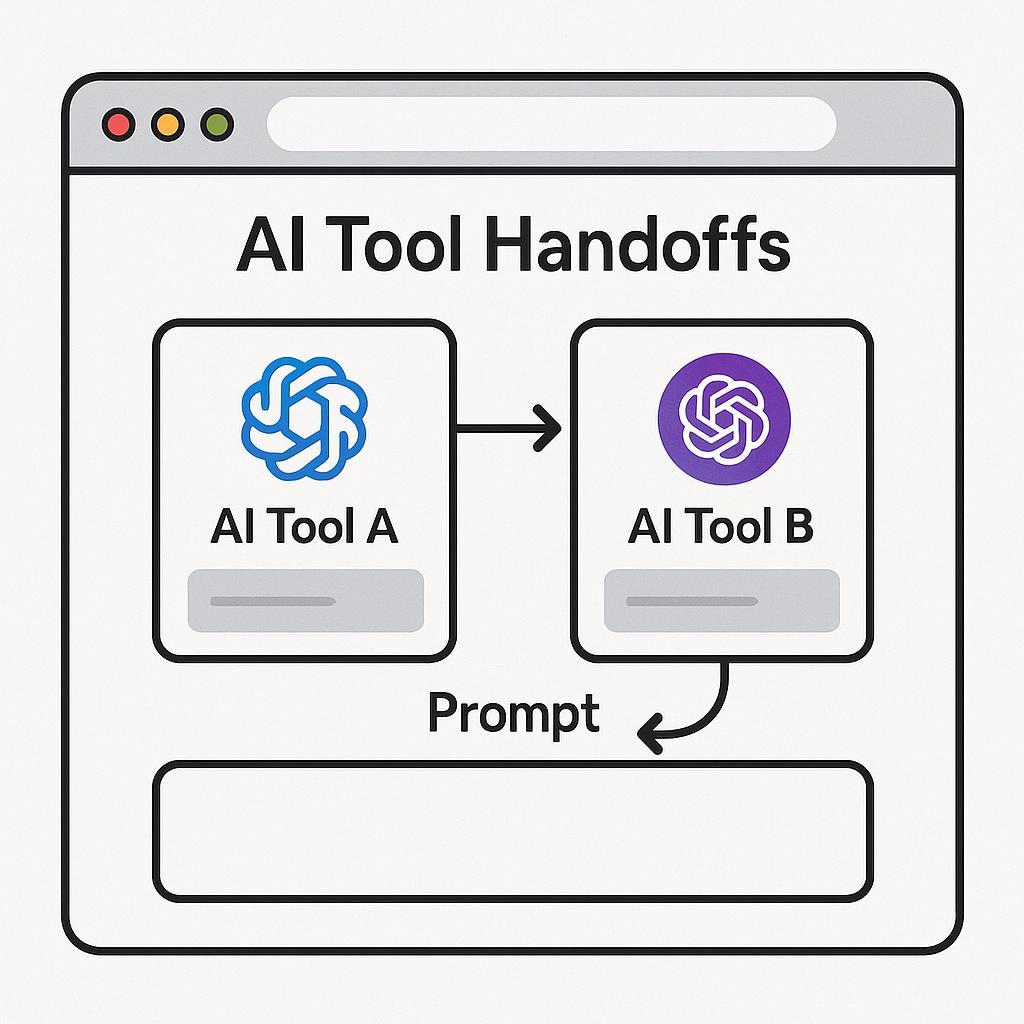
Why Your AI Workflow Needs a Browser Extension (Not Just a Tab)
Ever find yourself juggling too many tabs while bouncing between ChatGPT, Claude, Gemini, and other AI tools? You’re not alone. Today’s productivity powerhouses often wrestle with tab overload, clunky copy-paste routines, and prompt confusion when moving their work across platforms. Is there a smarter way to manage these AI tool handoffs in Chrome—and make your prompt transfer browser workflow seamless?
The Real Pain of Tab-Based AI Workflows
Here’s a familiar scenario: You craft a great prompt in one AI tool, then realize you want to test it elsewhere. Suddenly you’re toggling between tabs, copying text, hoping formatting sticks, and—oops—accidentally overwriting your work. Multiply this by a dozen tasks a day, and you can see how friction adds up, slowing your momentum and sapping your focus.
- High context-switching costs
- Lost or duplicate prompts
- Manual copy-paste errors
- Breaks in creative flow
All of this undermines the promise of AI: working faster and smarter.
Browser Extensions: The Secret Weapon for AI Tool Handoffs
Enter browser extensions—a quiet revolution for anyone serious about prompt engineering or AI-powered productivity. Instead of siloed tabs, a Chrome extension like My Magic Prompt sits right in your browser, ready to help you:
- Save and recall prompts instantly across ChatGPT, Claude, Gemini, and more
- Transfer prompts with a single click—no more manual copy-paste
- Organize your best ideas in one secure, searchable place
- Streamline your workflow with less tab toggling and less clutter
3-Step Prompt Transfer Framework
- Generate your prompt in any AI tool (or use a suggestion from your extension)
- Save the prompt to your extension with a click
- Insert it into another AI tool—formatted and ready to run
This cuts down on errors, preserves your best thinking, and lets you iterate faster across platforms.
Best Practices for a Productive AI Browser Workflow
- Consolidate prompts: Use a single extension as your prompt library to avoid duplicate work.
- Name and tag: Label prompts by project or use-case for easy recall.
- Cross-check outputs: Quickly compare results from different AI models by transferring the same prompt in seconds.
- Sync across devices: Choose an extension that works wherever you do.
For more prompt engineering strategies, see My Magic Prompt’s guide to effective AI workflows.
FAQs: AI Tool Handoffs & Browser Workflow
- What is an AI tool handoff in Chrome?
- It’s the process of moving your prompts, queries, or outputs from one AI platform to another—directly within your Chrome browser—without losing context or momentum.
- How does a browser extension improve prompt transfer?
- Extensions like My Magic Prompt eliminate manual copy-paste, let you save prompts instantly, and make transferring between ChatGPT, Claude, Gemini, and more frictionless.
- Can I use the same prompt in multiple AI tools?
- Yes. A browser extension lets you save, edit, and instantly reuse prompts across platforms—making side-by-side comparisons much easier.
- Is a Chrome extension secure for managing prompts?
- Most reputable extensions prioritize user privacy and security. Always review permissions and privacy policies before installing. For more, see this PCMag guide on Chrome extension security.
- How do I install My Magic Prompt?
- Visit the My Magic Prompt Chrome Web Store page and click “Add to Chrome.” Setup takes less than a minute.
Ready to Level Up Your AI Workflow?
If you’re serious about making the most of your AI tools, a browser extension is the upgrade you didn’t know you needed. Explore My Magic Prompt to see how smarter prompt transfer in your browser can help you work faster, iterate better, and keep your creative flow.