

How to Automate Repetitive Prompts in Chrome Without Code
June 30, 2026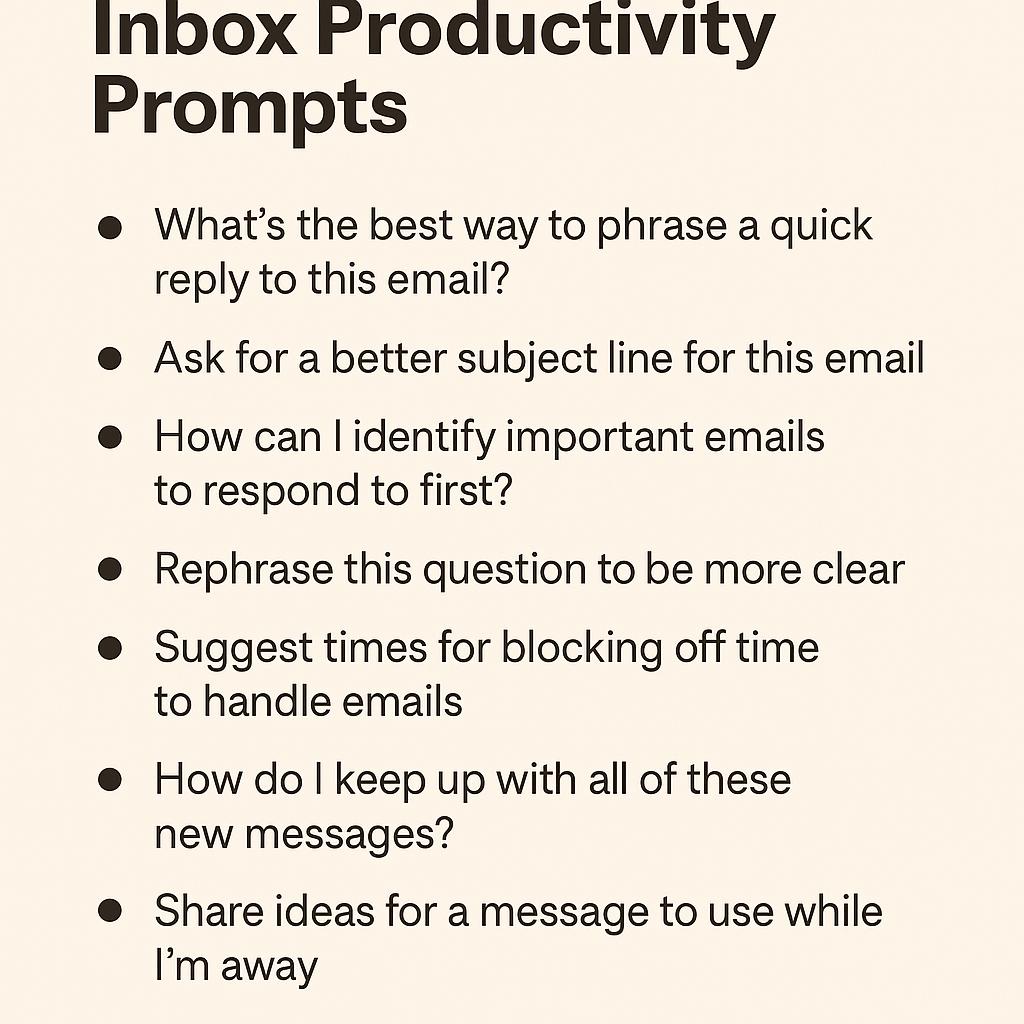
How to Build a Browser-Based AI Hub for Your Whole Team
Ever feel like your team spends more time wrangling their inbox than getting real work done? You’re not alone—email overload and scattered productivity tools are constant challenges for modern teams. But what if you could supercharge your workflow by turning your browser into an AI-powered productivity hub? In this guide, you’ll learn how to harness email reply prompts and inbox productivity prompts to streamline communication, keep context intact, and help your whole team work smarter—without missing a beat.
Why Build an AI Hub in Your Browser?
Increasingly, teams rely on AI for everything from brainstorming to drafting replies. But toggling between separate tools can slow you down. A browser-based AI hub brings your favorite AI assistants—like ChatGPT, Claude, and Gemini—right where you need them. With tools like MagicPrompt, you can generate high-quality prompts directly in Chrome or Edge, making it easy to:
- Write concise, on-brand replies faster
- Maintain tone and context across conversations
- Automate follow-ups and next steps
- Keep sensitive info safe by working within your trusted environment
Framework: Supercharging Inbox Productivity with AI Prompts
Ready to turn your browser into an AI command center? Here’s a simple framework to get your team started:
-
Centralize Your Tools:
- Install an AI prompt generator extension like MagicPrompt.
- Pin it to your browser for one-click access.
-
Create a Prompt Library:
- Curate email reply prompts for common scenarios (e.g., updates, feedback, scheduling).
- Include inbox productivity prompts for summarizing threads, extracting action items, or clarifying next steps.
-
Establish Prompt Best Practices:
- Keep prompts clear and specific for better AI responses.
- Add context (e.g., “Reply in a friendly but concise tone”).
- Test and refine prompts as your team’s needs evolve.
-
Share & Scale:
- Encourage team members to share their most effective prompts.
- Document prompt use cases in a shared space (like Notion or Google Drive).
Sample Email Reply Prompts
- “Reply to this email with a positive update. Keep it under 100 words.”
- “Summarize this thread and propose three next steps.”
- “Draft a follow-up asking for feedback, maintaining a professional but approachable tone.”
FAQ: Browser-Based AI Hubs & Prompt Engineering
- What are inbox productivity prompts?
- Inbox productivity prompts are AI-generated instructions that help you manage, organize, and respond to emails more efficiently. They can automate summaries, replies, and action items.
- How can I ensure AI replies keep the right tone and context?
- Be clear in your prompts about tone, length, and context. For example, specify “friendly and concise” or “formal and detailed” depending on your audience.
- Can my team share and reuse prompt templates?
- Absolutely! Sharing effective prompts builds consistency and saves time. Tools like MagicPrompt make it easy to build and access a shared prompt library.
- Is it safe to use AI prompts for sensitive emails?
- Most browser-based tools, including MagicPrompt, work locally or offer privacy controls. Always check privacy policies and avoid sharing confidential data with external services.
- What other tools can help boost browser-based workflow?
- Consider browser extensions like AI email tools, productivity dashboards, and note-taking apps that integrate with your browser.
Start Building Your AI Hub
Transforming your browser into an AI hub doesn’t require coding or complex setup—just the right tools and a few smart prompt strategies. If you’re ready to try it for yourself, explore My Magic Prompt and see how easy it can be to power up your team’s productivity.