

The Fastest Way to Reuse Your Best AI Prompts in Chrome
August 14, 2026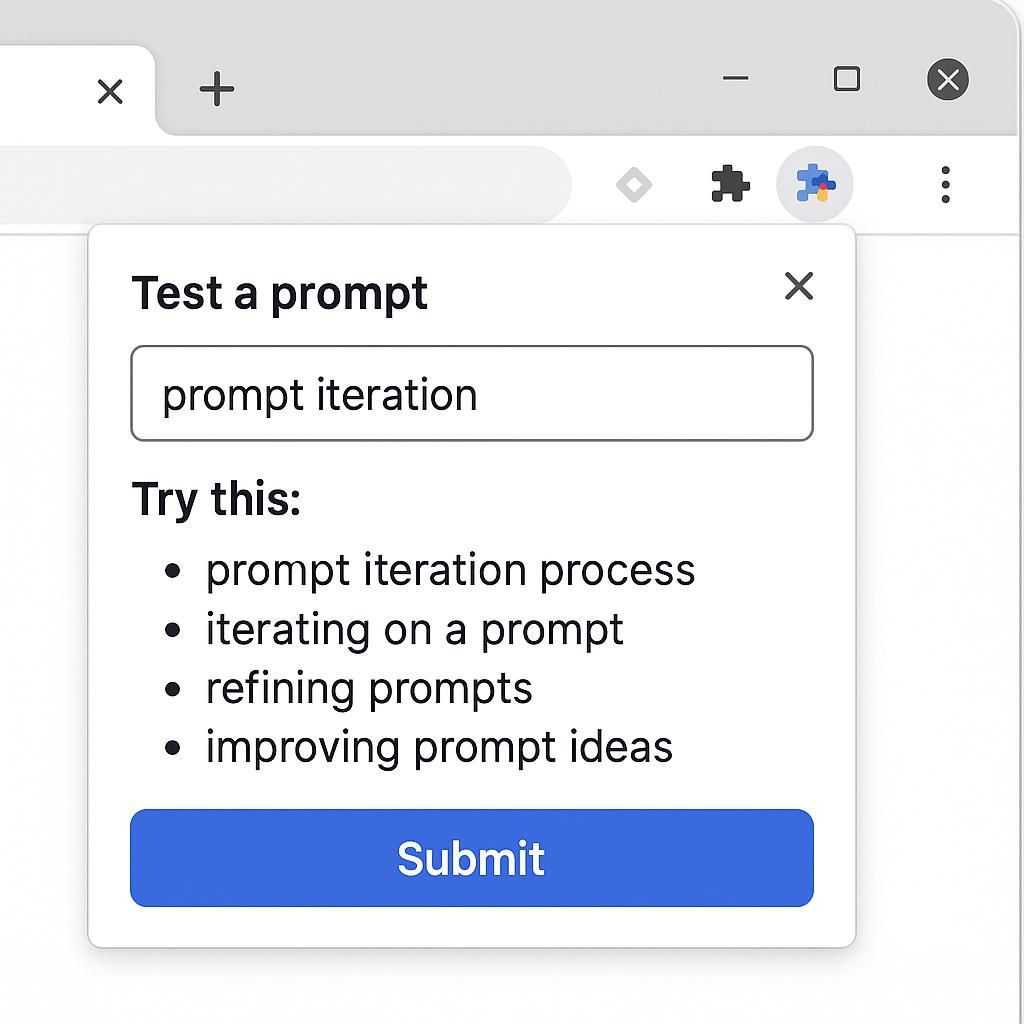
The Minimalist AI Chrome Extension Setup for 2026
Ever felt stuck in a loop of copy-pasting prompts into AI chat tools, endlessly tweaking wording and reloading threads? If you’re aiming to test prompts in a Chrome extension—or streamline your prompt iteration workflow—there’s a better, faster way. In 2026, smart AI users are trading cluttered browser tabs for a minimalist toolkit designed to supercharge their productivity. Here’s how you can do the same.
Why Prompt Iteration Matters (and Why Chrome Extensions Are the Secret Weapon)
Prompt engineering is the backbone of powerful AI output. But making minor tweaks, testing variations, and comparing results can be tedious if you’re constantly switching between tools or refreshing chat threads. A Chrome extension built for prompt iteration lets you:
- Test prompts directly in your browser without reloading pages
- Quickly compare different versions side-by-side
- Save time and mental energy for higher-value thinking
With a tool like My Magic Prompt for Chrome, you can iterate on prompts for ChatGPT, Claude, or Gemini in seconds—not minutes.
Framework: The Minimalist Prompt Testing Workflow
- Define Your Goal: Start with a clear outcome. (E.g., “Summarize complex articles in one sentence”)
- Draft Variations: Use a prompt generator or your own creativity to write 2-3 prompt versions.
- Test Prompts in the Chrome Extension: Paste or auto-insert your prompts. Review AI outputs instantly, side-by-side.
- Refine & Save: Fine-tune the best version. Save high-performers to your prompt library.
This setup eliminates tab overload and lets you focus on strategic prompt engineering rather than repetitive busywork. For advanced tips, check out the My Magic Prompt blog.
Pro Tips for Efficient Prompt Iteration
- Batch Test: Run multiple prompt variations together to spot subtle differences in output.
- Use Templates: Save your best-performing structures for future projects.
- Leverage AI Feedback: Ask the AI to critique or rank its own responses—meta, but effective.
- Stay Organized: Use folders or tags to track prompts by use case or model.
Looking for more inspiration? Explore Prompt Engineering best practices from the wider AI community.
FAQ: Chrome Extension Prompt Iteration Basics
- What is prompt iteration in a browser extension?
- Prompt iteration means quickly testing and refining prompts for AI models, using a Chrome extension to streamline the process without switching tabs or apps.
- Can I use prompt iteration for different AI models?
- Yes! Tools like My Magic Prompt support prompt generation for ChatGPT, Claude, Gemini, and more, making cross-model testing straightforward.
- Is this setup beginner-friendly?
- Absolutely. The minimalist approach is about reducing friction—perfect for anyone looking to upgrade their prompt engineering workflow, no matter their experience level.
- How does this compare to traditional prompt testing?
- Instead of copying, pasting, and reloading chat threads, a Chrome extension keeps everything in one place—saving you time and cognitive load.
- Can I save and organize my favorite prompts?
- Yes. Most AI prompt Chrome extensions let you save, tag, and categorize your best-performing prompts for easy reuse.
- Where can I learn more about prompt engineering techniques?
- Check out the My Magic Prompt blog for tutorials, frameworks, and expert tips.
Ready to Simplify Your AI Workflow?
If you’re looking to test prompts in a Chrome extension and master prompt iteration in your browser, a minimalist setup is your secret weapon. Explore My Magic Prompt to see how easy it can be to level up your AI productivity—no clutter, no hassle, just smarter results.